Batch Workspace
Add multiple images or folders, review outputs visually, resolve warnings, choose naming behavior, and export safe copies without modifying originals.
 ARC: Aspect Ratio & Resize
Version 2.4 for Mac
Drag, paste, choose, or use Open With in Finder. Work one image at a time, open several images in separate ARC windows, or stage images and folders in Batch Workspace before exporting safe source-named copies.
Images stay on your Mac. Nothing is uploaded to us.
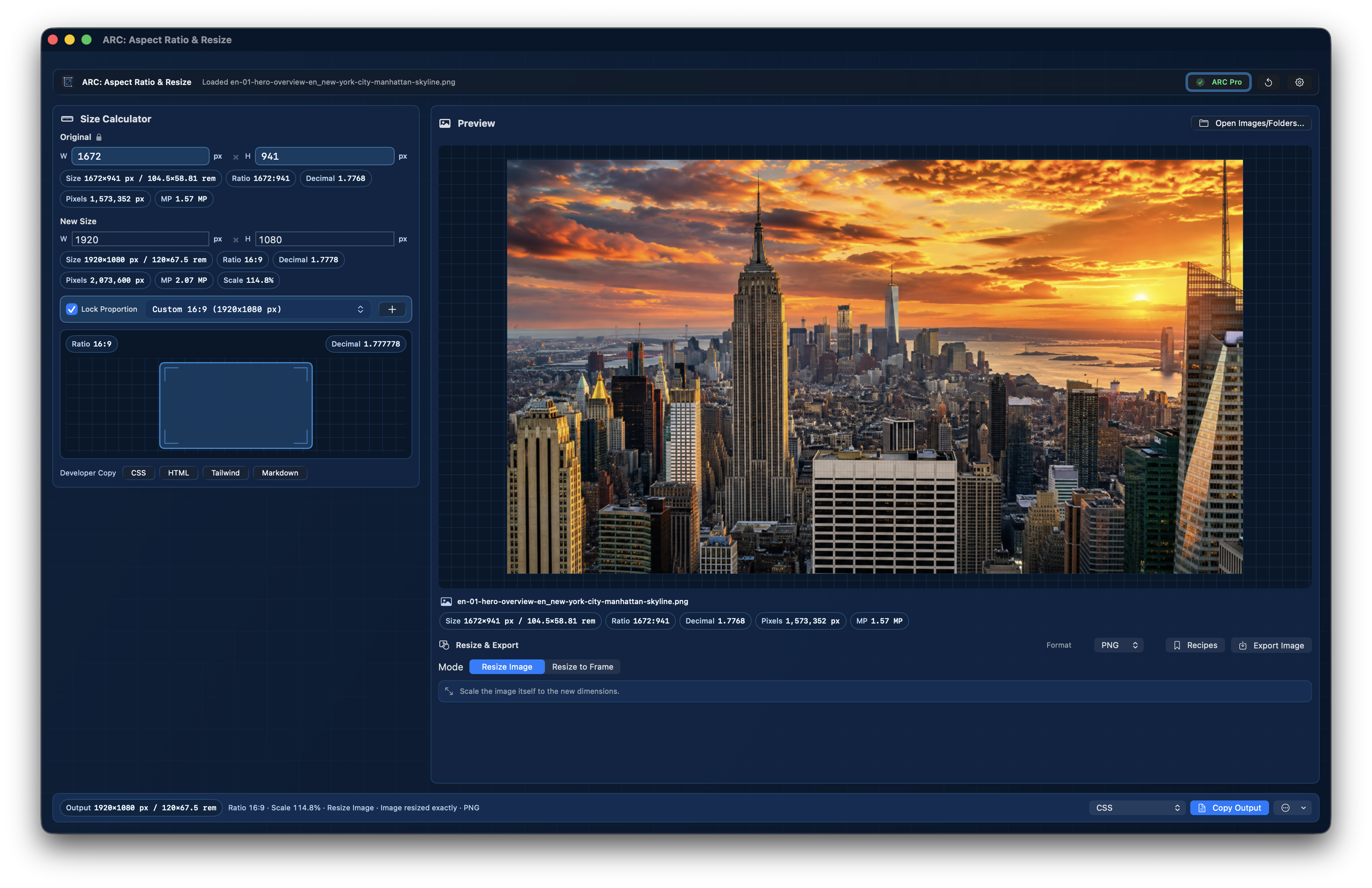
Original Size -> New Size -> Preview -> Copy / Export
Start with the real dimensions, choose the final size or ratio, inspect the preview, then copy values or export the finished image.
Drop in an image, paste from the clipboard, or type dimensions to read the real starting size.
Enter the width or height you need, and let the app fill in the proportional side.
Check image, frame, crop, fit, ratio, scale, and final output before anything is saved.
Copy the size, CSS, HTML, Tailwind, or Markdown, or export PNG, JPG/JPEG, TIFF, or HEIC.
New in 2.4
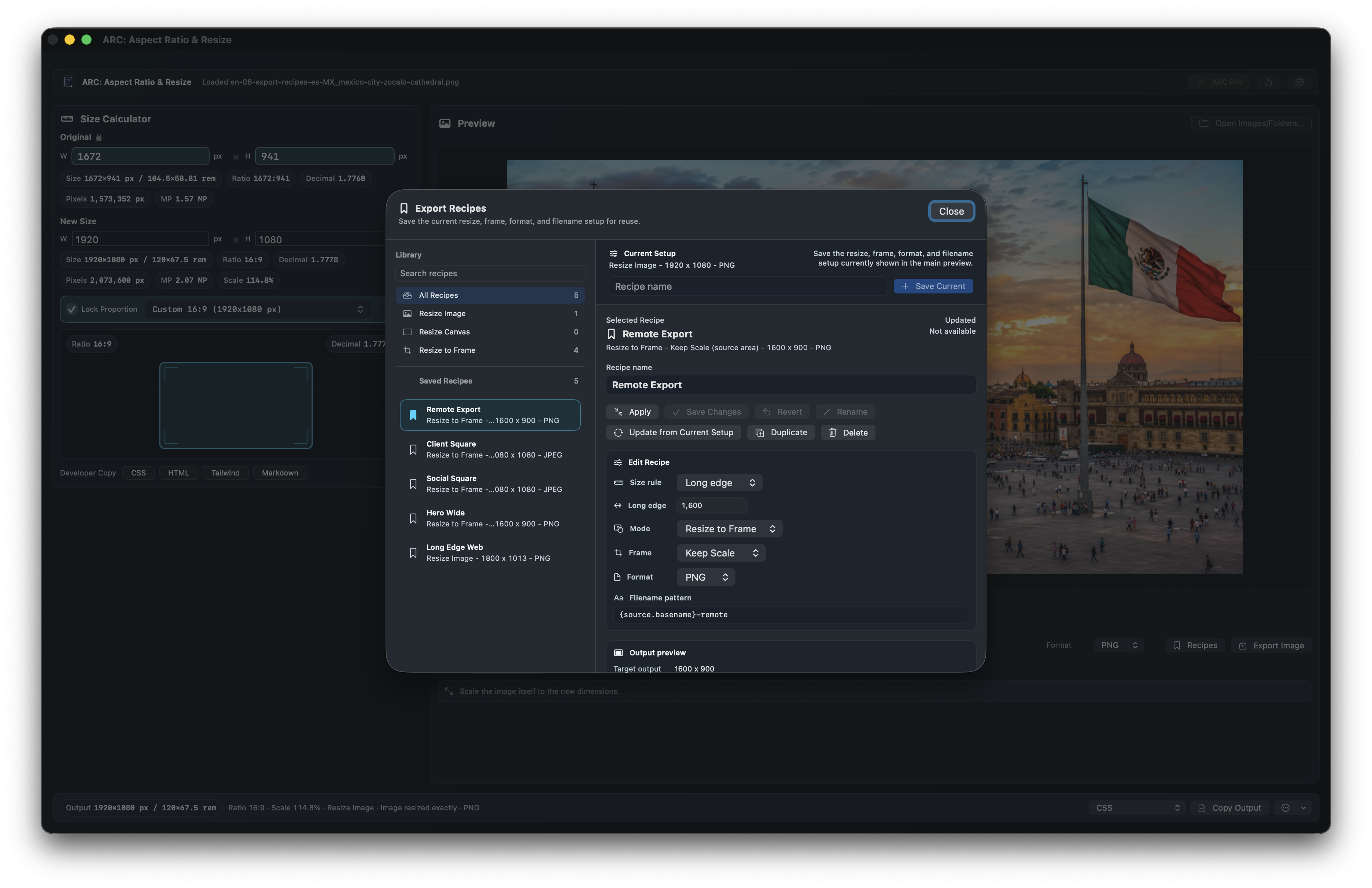
New in 2.4: Batch Workspace, multiple recipes in one batch, saved Export Recipes, Finder Open With, multi-window workflows, and ARC Pro Access.
Add multiple images or folders, review outputs visually, resolve warnings, choose naming behavior, and export safe copies without modifying originals.
Apply a social recipe to one selection and a web, email, documentation, or App Store recipe to another while keeping per-image overrides visible.
Open supported images from Finder, open several images in separate ARC windows, or drop many images and choose Batch Workspace.
Fit Inside, Fill & Crop, and Keep Scale remain visible while exact-output previews show what will happen before export.
Annual Pro, Monthly Pro, and Mac Lifetime now unlock the same Pro feature set, including batch export and bundled packs.
The 347 exact-size presets, workspace themes, and 21 localized runtime locales are aligned with the 2.4 release.
Interactive 2.4 product tour
Each state spotlights what changes in the real Mac app: size math, batch staging, frame fit, saved recipes, presets, themes, and Quick Ratio.
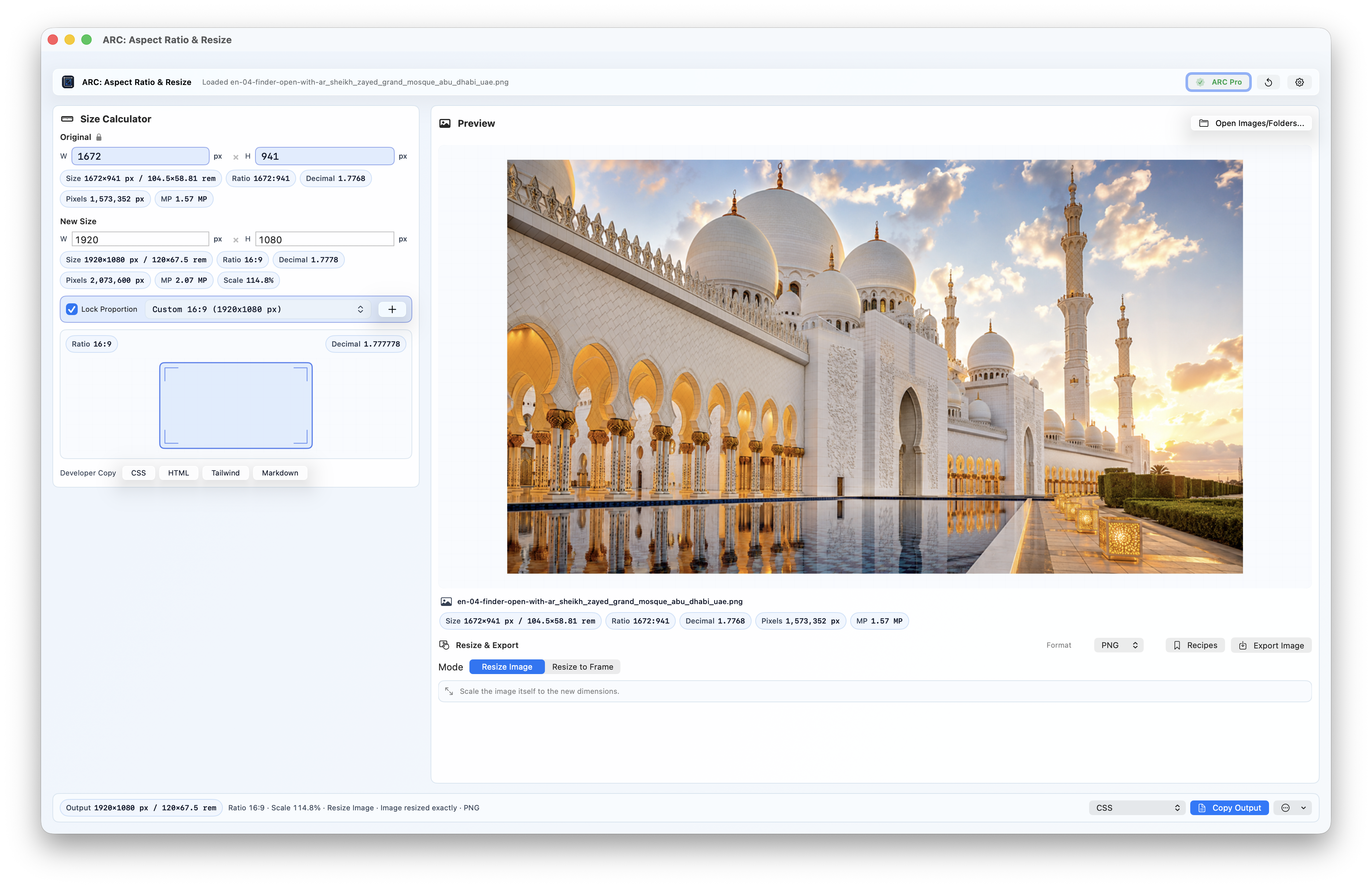
Resize Image
The app reads the dropped image, keeps the original ratio visible, and fills in the missing side when you enter the target width or height.
The final width becomes 1920, the app calculates 1080, and the preview still shows a 16:9 image instead of a stretched export.
1672 x 941 -> 1920 x 1080
aspect-ratio: 16 / 9;
01
Drop in an image or enter dimensions. Version 2.4 keeps the original size, new size, ratio, preview, recipes, copy output, and source-based export naming in one workflow.
02
Drop multiple images or folders, review every output before export, and create safe copies while originals remain untouched.
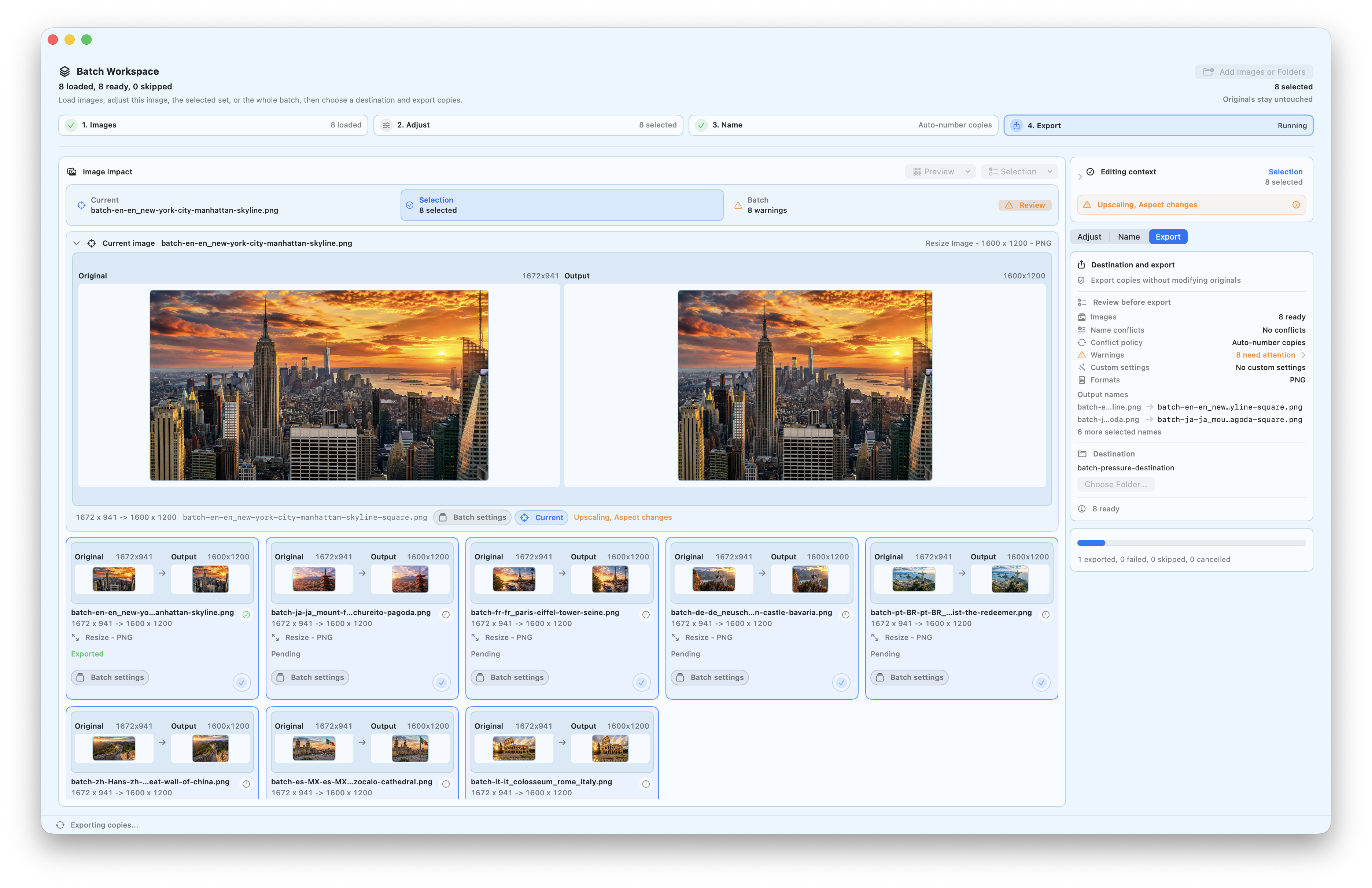
03
Apply a social recipe to one selection and a web, email, documentation, or App Store recipe to another while per-image overrides stay visible.
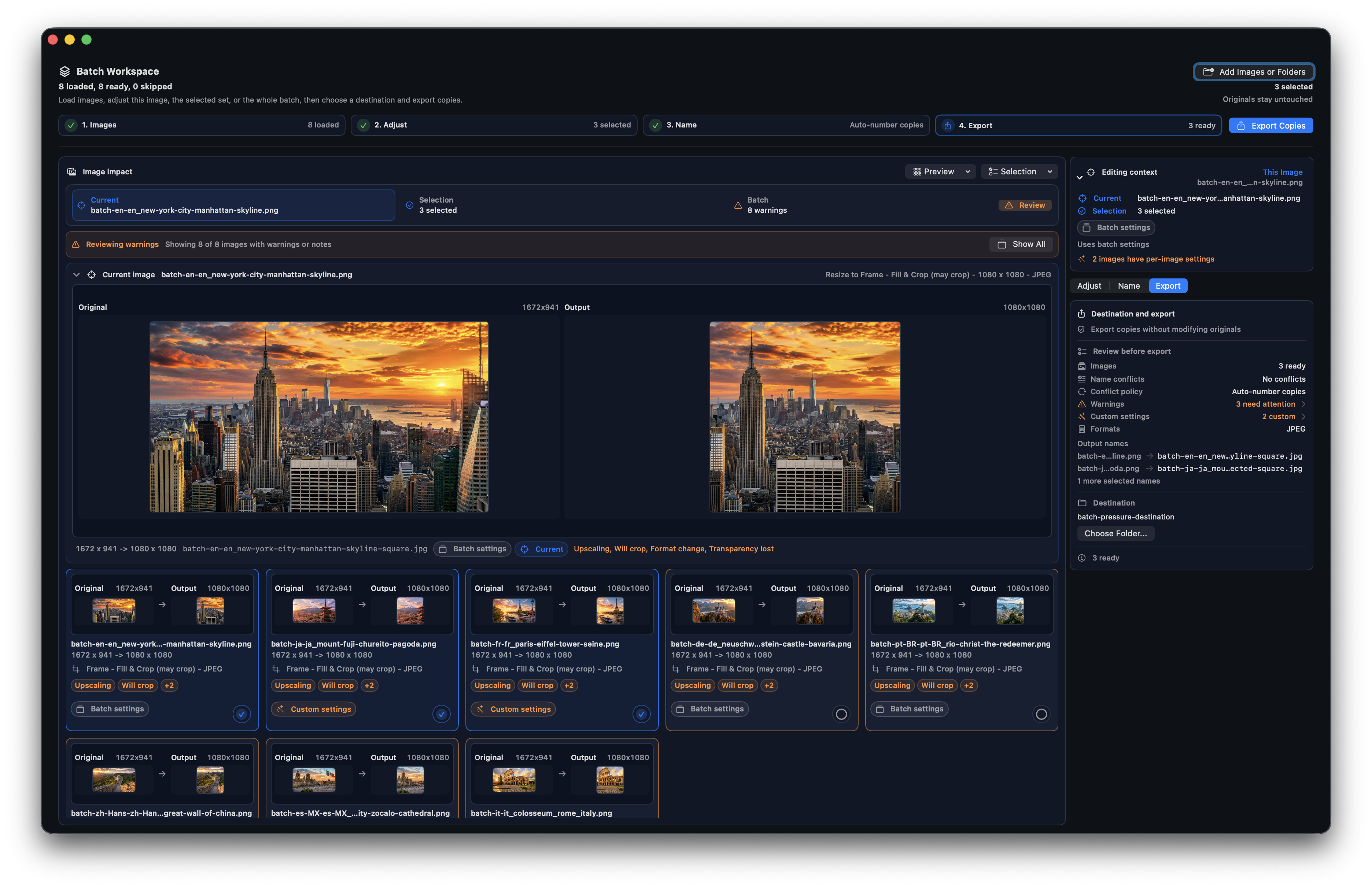
04
Use Finder's Open With for supported images, open multiple images in separate ARC windows, or route many files into Batch Workspace.
05
Search by platform, size, ratio, or use case across social, web, App Store, ecommerce, print, icons, real estate, and more.
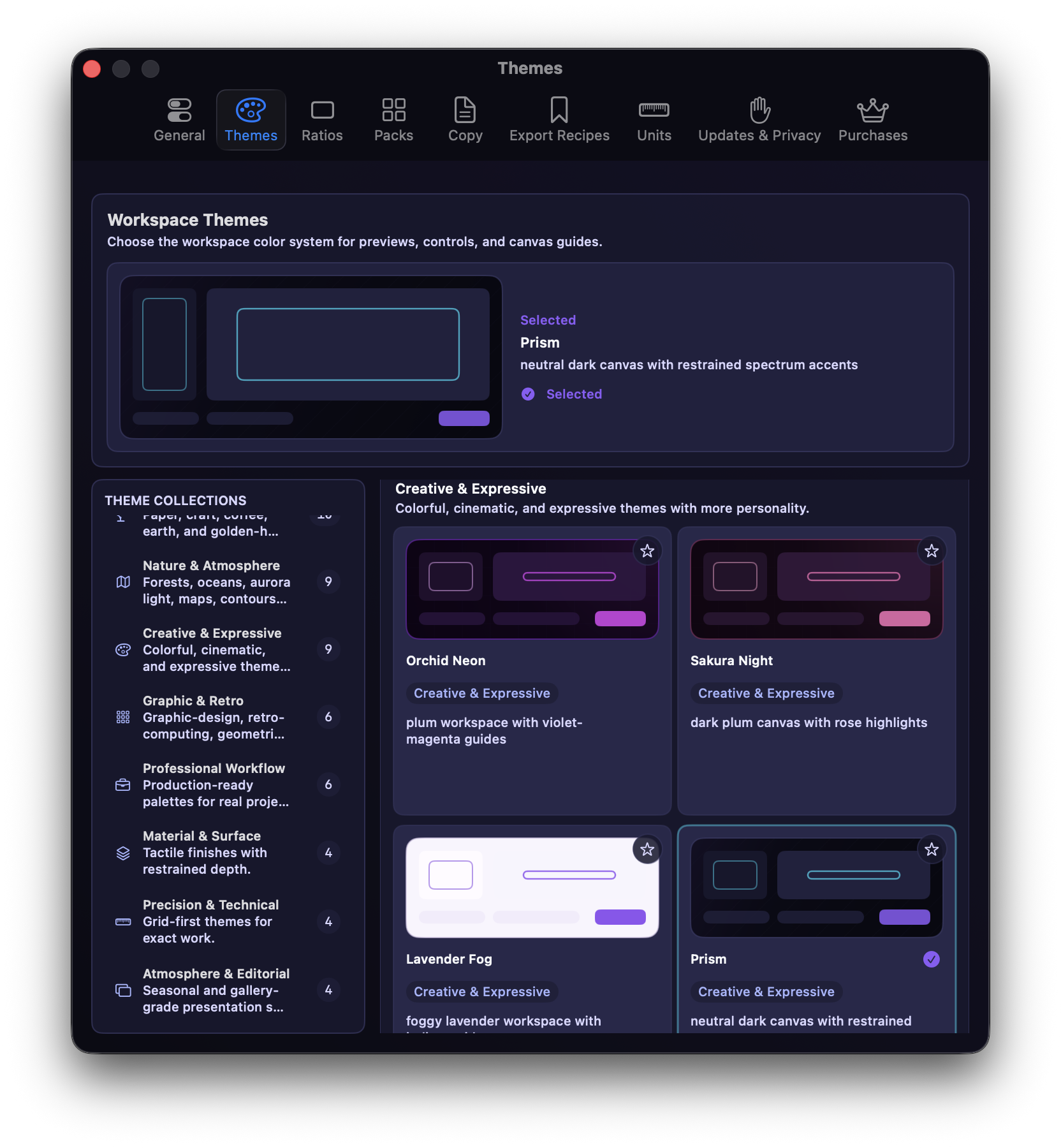
Image sizing should not require guesswork.
One wrong number can stretch an image, break a layout, or crop the wrong part. ARC: Aspect Ratio & Resize keeps the sizing workflow visible, previews the fit, and exports the exact size your project requires.
Lock the original proportions or choose a common ratio before you resize.
Choose the final size in the same place you inspect the original image.
Click visible chips or copy CSS, HTML, Tailwind, Markdown, or your own saved format.
Resize Image vs Resize to Frame
Two different jobs, two different results. The app keeps the choice visible before you save.
Resize Image
Use this when the final file needs to be exactly the entered width and height, you want the image itself resized, and proportional scaling is what you need.
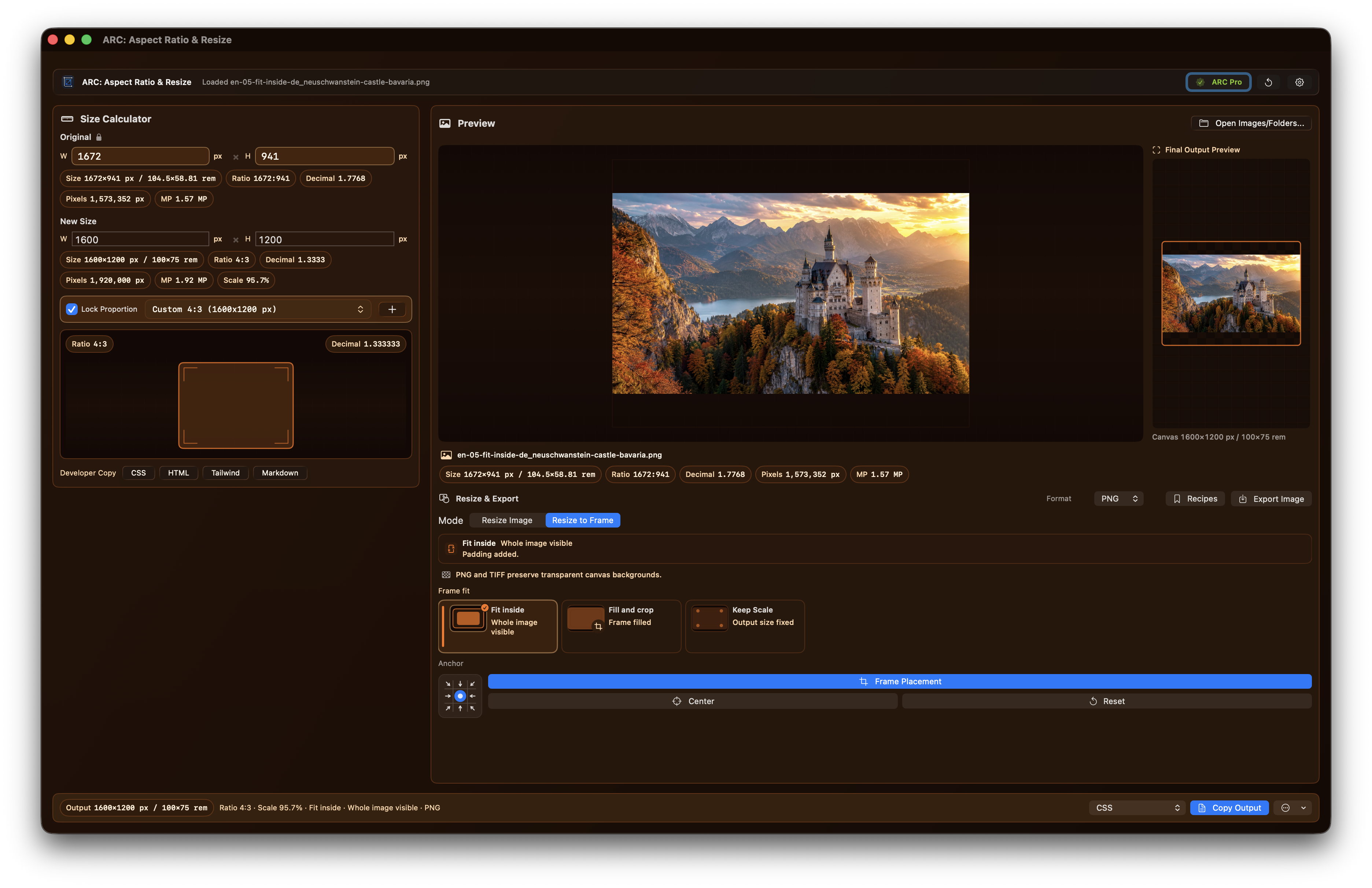
Fit Inside
Use this when the frame size is fixed but the full image still needs to remain visible, with padding added only when the ratio requires it.
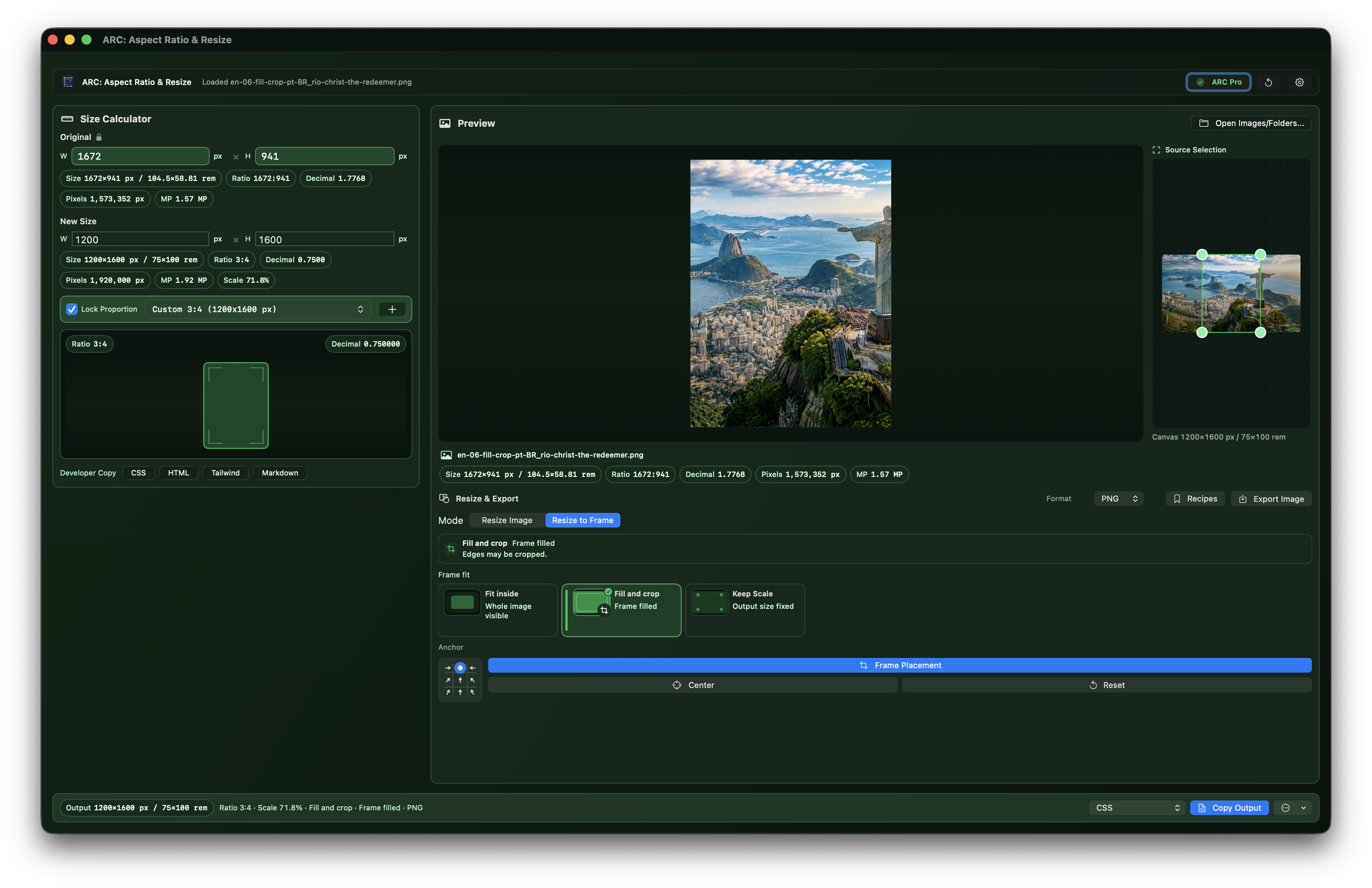
Fill & Crop
Use Fill & Crop when the outside frame must be filled and the image can crop while preserving its original proportions.
Feature map
Inspect
Drop, paste, choose, or use Finder Open With to read true pixels before changing anything.
Solve
Enter one side and ARC calculates the matching width or height immediately.
Presets
Core ratios plus 347 exact-size presets across 29 categories.
Batch
Stage many images or folders, review the job visually, and export generated copies.
Recipes
Apply different Export Recipes to different selections inside one batch job.
Resize
Resize the actual image to the new width and height, with distortion warnings when needed.
Frame
Fit, fill and crop, keep scale, or place an image inside an exact output frame.
Copy
Click value chips or copy CSS, HTML, Tailwind, Markdown, and size notes.
Export
Reuse size, frame, format, metadata, quality, and filename settings for recurring jobs.
Quick
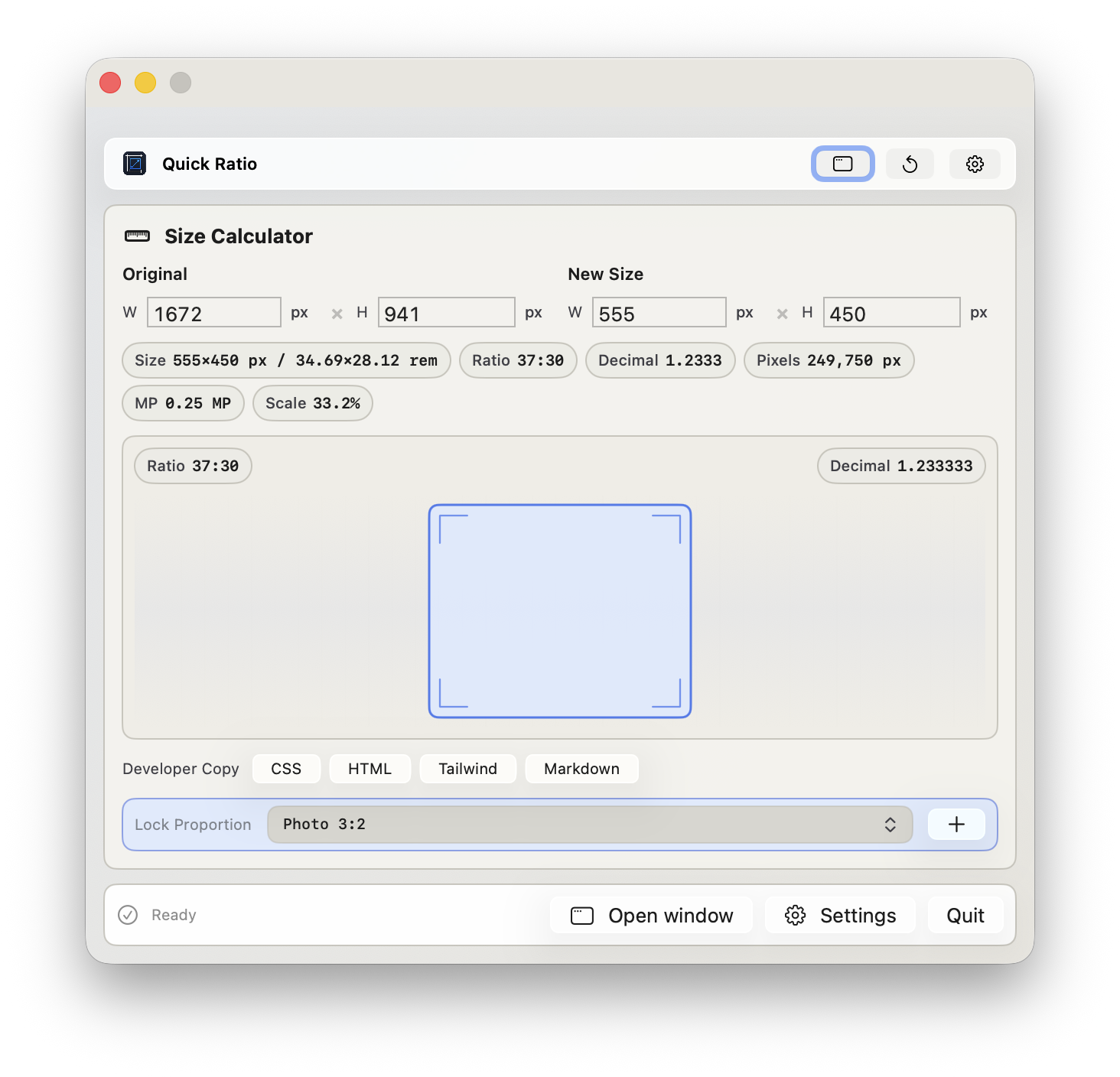
Use Quick Ratio in the window or menu bar, including an open-at-login option, with local processing.
Preset proof
The site uses the same app catalog: seven core ratios plus 347 Workspace Ratio Pack presets across 29 categories for social, web, app-store, ecommerce, real-estate, print, wallpaper, and everyday export work.
Workspace Ratio Pack
Search a platform, a job, a dimension, or a ratio. Then bring the matching preset into the app, preview the fit or crop, and export the final image without stretching.
Try App Store, Open Graph, real estate, 1200x630, or 16:9.
Loading ratio presets from the app catalog.
Developer Copy
Copy the size in the format you actually need - no extra calculator tabs, no retyping, no almost-right values.
aspect-ratio: 16 / 9;Choose a format, then copy the exact value.
Made for the moments when the exact size matters.
Prepare hero images, Open Graph graphics, cards, thumbnails, and responsive images.
Resize screenshots for product pages, documentation, support articles, and app listings.
Place images into fixed frames while preserving the part of the photo that matters.
Resize listing photos, client graphics, blog images, and presentation images without stretching them.
Copy image sizes, HTML attributes, Markdown snippets, and CSS helpers without retyping them.
Check unit-aware details when the image needs to make sense beyond pixels.
A focused tool, not another editor
Preview and big editors have their place, but exact sizing often means dialogs, actions, or repeated export setup. ARC keeps single-image math, Batch Workspace, per-selection Export Recipes, fit or crop previews, and developer copy in one purpose-built workflow.
Workspace Theme Gallery
Select any theme to repaint a live app representation. The colors, chrome, canvas, guide lines, chips, and preview workspace fade into the selected scheme.
Core & Signature
Subtle blueprint grid with electric guide lines.
76 catalog themes loaded from the app tokens, plus the native Mac appearances in the app.
Free and ARC Pro Access
Free users get the core calculator, image inspection, built-in copy outputs, and a monthly export allowance. ARC Pro Access unlocks unlimited exports, Batch Workspace export, saved Export Recipes, custom ratios and templates, advanced units, iCloud settings sync, workspace themes, and curated exact-size presets.
Free
$0
Best Value
Annual Pro
$29.99per year, about $2.50/mo
Monthly Pro
$4.99per month
Limited time launch promo
Mac Lifetime
$99.99one-time launch price
One-time ARC Pro Access for the Mac app. No subscription.
Support Development
Coffee, Latte, and Double Shot are optional repeatable thank-you purchases for eligible legacy users. They support ongoing development, testing, and maintenance - they do not unlock Pro, extend a subscription, or gate any features.
 Coffee$2.99
 Latte$9.99
 Double Shot$19.99
Already bought? Existing paid-app customers get Pro automatically when the App Store can verify the old paid purchase, and legacy Family Sharing remains handled by the Mac App Store. Retired Pro, Family, pack, and Ultimate products remain recognized for compatible receipts.
Mac App Store purchases are handled by Apple. Review the Terms of Service and EULA and Privacy Policy.
Native Mac utility
ARC: Aspect Ratio & Resize is built to feel like a Mac app: drag and drop, a focused window, optional menu bar mode, and controls that make sense without a tutorial.
For quick jobs, Quick Ratio lives in the menu bar so you can check dimensions, lock a ratio, copy CSS, HTML, Tailwind, or Markdown, and get back to what you were doing.
FAQ
Here's what the app does, what Pro adds, and what it intentionally does not try to be.
Use those apps when the job is editing. ARC: Aspect Ratio & Resize is for the narrower, frequent job of making an image the exact size you need: inspect the original, choose a final size or ratio, preview fit or crop, copy useful values, and export without distortion.
No. It is a focused tool for sizing images, preserving proportions, previewing the result, copying useful values, and exporting the final image. It is meant to sit alongside apps like Photoshop, Figma, Canva, Pixelmator, and Preview - not replace them.
Yes. The free version includes the core ratio calculator, image inspection, basic pixel details, built-in copy formats, Copy Output, and Copy Output Size.
ARC Pro Access unlocks unlimited exports, Batch Workspace export, saved Export Recipes, custom ratios and templates, advanced unit conversions, configurable metadata chips, iCloud settings sync, bundled workspace themes, curated exact-size presets, and more control over resize, frame, and export tools.
Annual Pro and Monthly Pro support App Store Family Sharing where Apple's systems allow it. Mac Lifetime is Mac-only and does not include Family Sharing. Legacy paid-app and compatibility receipts keep the sharing behavior Apple can verify for that purchase.
No. If you bought the old paid version, Pro unlocks automatically when the App Store can verify your purchase.
PNG, JPG/JPEG, TIFF, and HEIC. HEIF is available when the macOS encoder supports it.
Yes. The bottom-bar Share action renders the current output and opens the native macOS share sheet, so you can send the result through the sharing options available on your Mac.
Yes for batch resizing and export: Batch Workspace can stage multiple images or folders and export generated copies. No for generative editing: ARC does not create AI edits, retouch photos, or replace a full image editor.
Use the contact form on this site and include the image size, export format, purchase question, or sizing problem you need help with. Please do not send sensitive files through the form. You can also review the Privacy Policy and Terms of Service before sending personal details.
Ready to stop guessing image sizes?
Support and feedback
Include the original dimensions, the size you needed, and what happened. Please do not send sensitive files.
Review the Privacy Policy before sending personal details.