Native Mac image sizing

Get the image size right before you export.

Drop in an image, enter one dimension, and preview the exact output size, ratio, canvas, crop, and export format before you save.

Images stay on your Mac. Nothing is uploaded to us.

  • Works with macOS Sequoia and Tahoe
  • Free to download
  • Optional Lifetime Pro
  • PNG · JPG/JPEG · TIFF · HEIC
  • Mac share sheet supported
  • Copy for CSS, HTML, Tailwind & Markdown
Original 1672 x 941 New 1200 x 675 Ratio 16:9 Scale 71.8% Export PNG · JPG · TIFF · HEIC CSS · HTML · Tailwind · Markdown

Product screenshots

See the math before you export.

Three real views of the Mac app: calculate the final size, preview the frame, then fine-tune what stays visible.

01

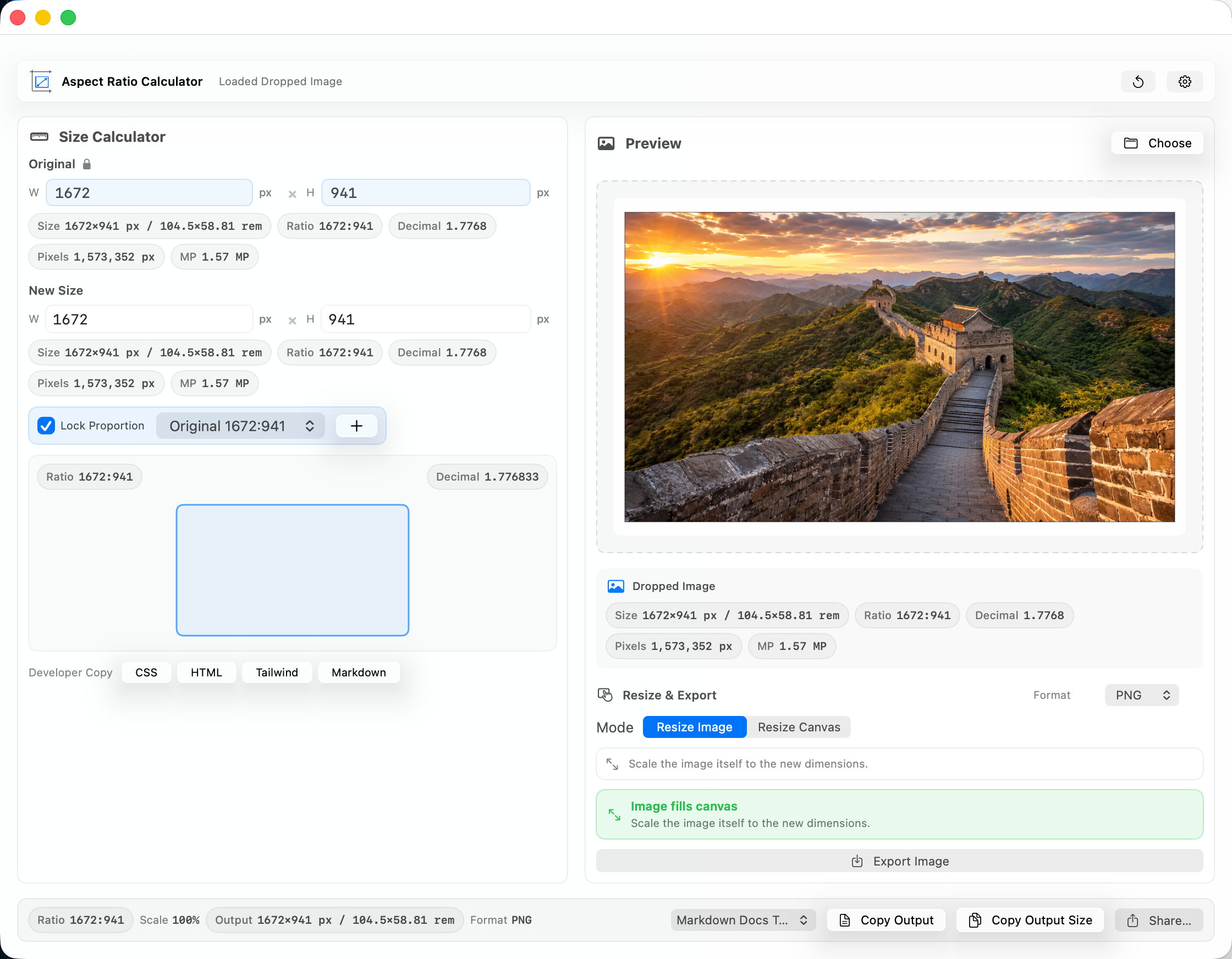
Calculate the final size.

Drop in an image or enter dimensions. The app shows the original size, new size, ratio, decimal value, pixels, megapixels, and scale in one place.

Original size New size Ratio Pixels Copy Output
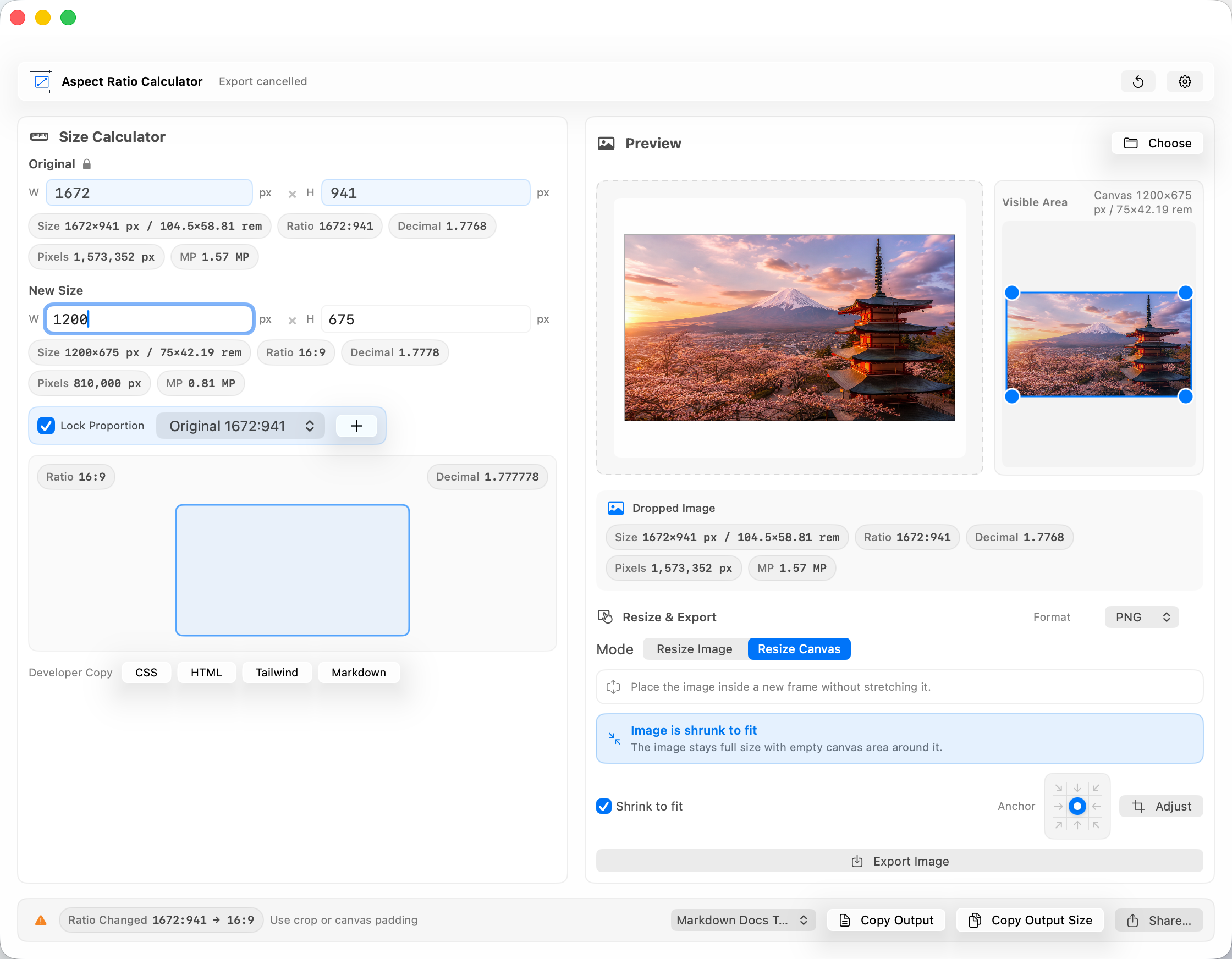
Main Aspect Ratio Calculator window with image sizing, preview, metadata chips, and copy output controls.

02

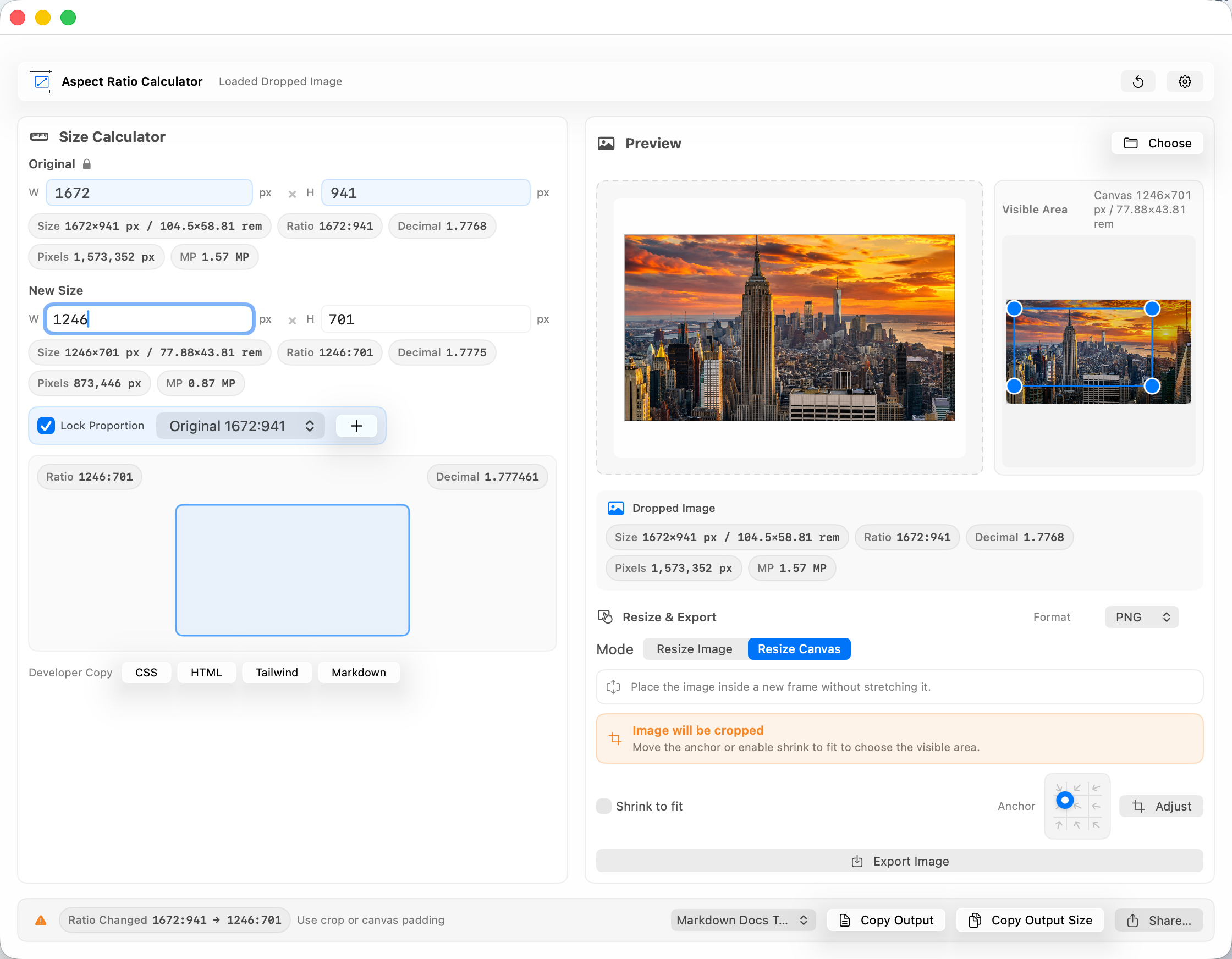
Preview the frame before saving.

See whether the image fits, crops, or needs canvas padding before you export.

Resize Canvas Visible Area Shrink to fit Export Image
Main app window showing Resize Canvas crop warning before export.

03

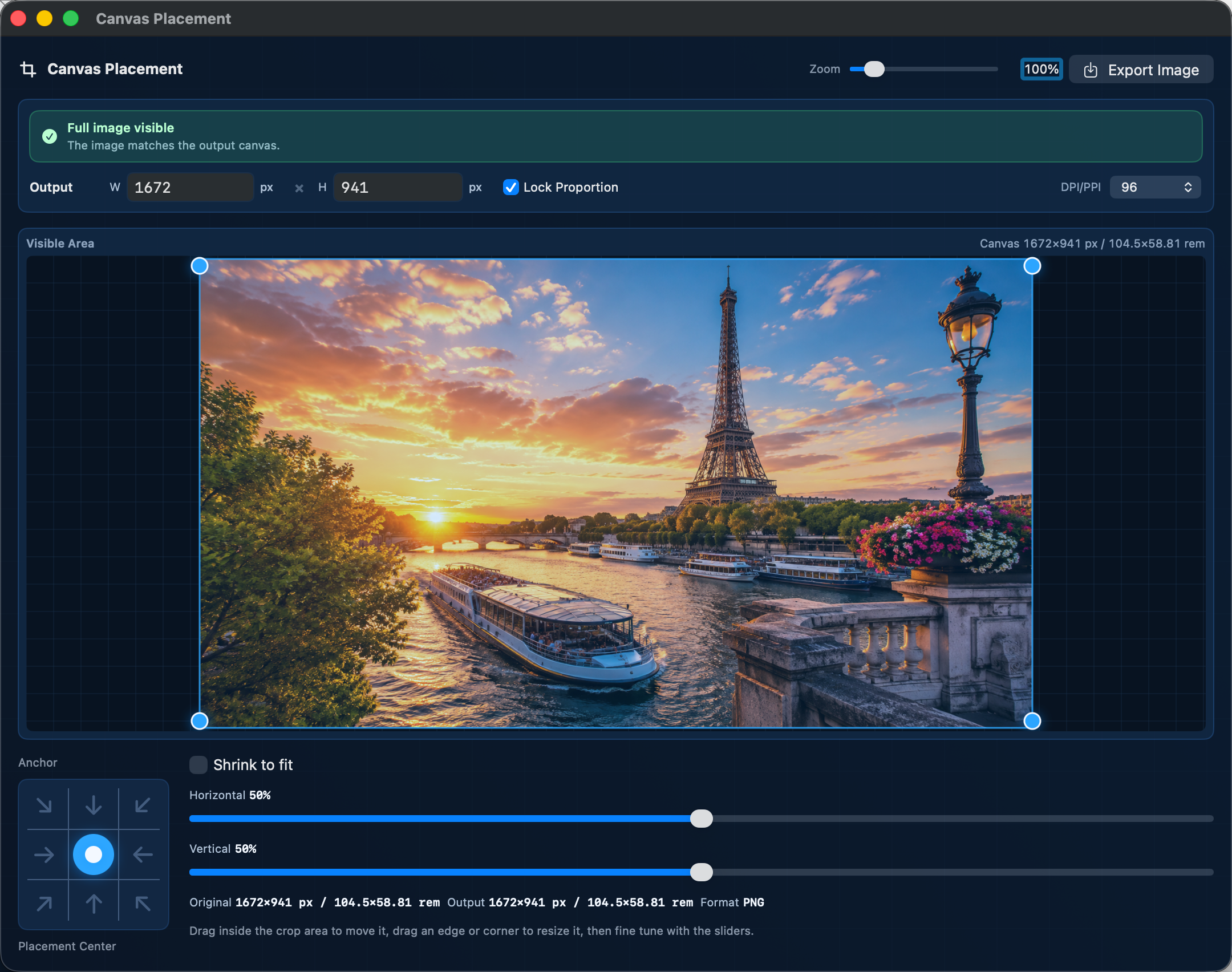
Fine-tune the visible area.

Use Canvas Placement to anchor, crop, shrink, or position the image inside a fixed output frame. Blueprint Mode gives Pro users a darker grid view for this kind of detail work.

Shrink to fit Crop warning Anchor Blueprint Mode Horizontal / Vertical placement
Blueprint Mode Canvas Placement window showing a dark grid, output frame, and visible image area.
Main app view showing a full image visible in its output frame.

Image sizing should not require guesswork.

One wrong number can ruin the image.

One wrong number can stretch a photo, break a layout, or crop the wrong part. Aspect Ratio Calculator keeps the math visible, shows the preview clearly, and exports the size you intended.

No stretched images

Lock the original proportions or choose a common ratio before you resize.

No mystery math

See the width, height, ratio, pixel count, megapixels, and scale in one place.

No retyping values

Copy the final size, CSS, HTML, Tailwind, Markdown, or your own saved format when you're done.

Original Size -> New Size -> Preview -> Copy / Export

A simple way to go from original size to final image.

You can see the original size, new size, preview, and export options without hunting through panels.

  1. 01

    Original Size

    Drop in an image, or type in dimensions to read the real starting size.

  2. 02

    New Size

    Enter the target width or height, and let the app fill in the other side.

  3. 03

    Preview

    Preview the result before saving: image, canvas, crop, fit, ratio, scale, and final size.

  4. 04

    Copy / Export

    Copy the size or export the image as PNG, JPG/JPEG, TIFF, or HEIC.

Resize Image vs Resize Canvas

Resize the image, or resize the frame.

Two different jobs, two different results. The app keeps the difference visible before you save.

Resize Image

Change the actual image dimensions.

Use this when the final file needs to be exactly the entered width and height, you want the image itself resized, and proportional scaling is what you need.

Resize Canvas

Change the frame around the image.

Use this when the outside frame is fixed, you need padding or crop control, and you want to place the image without stretching it.

Feature map

The tools are grouped by the job you are doing.

Calculate

  • Aspect ratio calculatorMissing width or height, ratio, pixels, scale, and megapixels.
  • Built-in presetsSquare, photo, widescreen, vertical, print, and cinema layouts.
  • Image inspectionDrop in an image to see its real pixel size and basic details.

Preview

  • Resize ImageResize the actual image to the new width and height.
  • Resize CanvasPlace an image inside a new frame without stretching it.
  • Canvas placementAnchor, shrink, crop, or fine-tune where the image sits.

Copy

  • Developer CopyCSS, HTML, Tailwind, Markdown, and size notes.
  • Copy Output SizeCopy the final output size from the bottom bar.
  • Custom Pro templatesSave the copy format your project actually uses.

Export

  • PNG, JPG/JPEG, TIFF, HEICExport common image formats. HEIF depends on your Mac encoder.
  • Save-panel controlsChoose format and quality for compressed formats.
  • Native macOS sharingSend the resized image through the Mac share sheet.

Mac workflow

  • Menu bar or windowQuick Ratio for fast checks or the full window for image work.
  • Native controlsA focused Mac utility, not a bloated editor.
  • Local processingImages stay on your Mac.

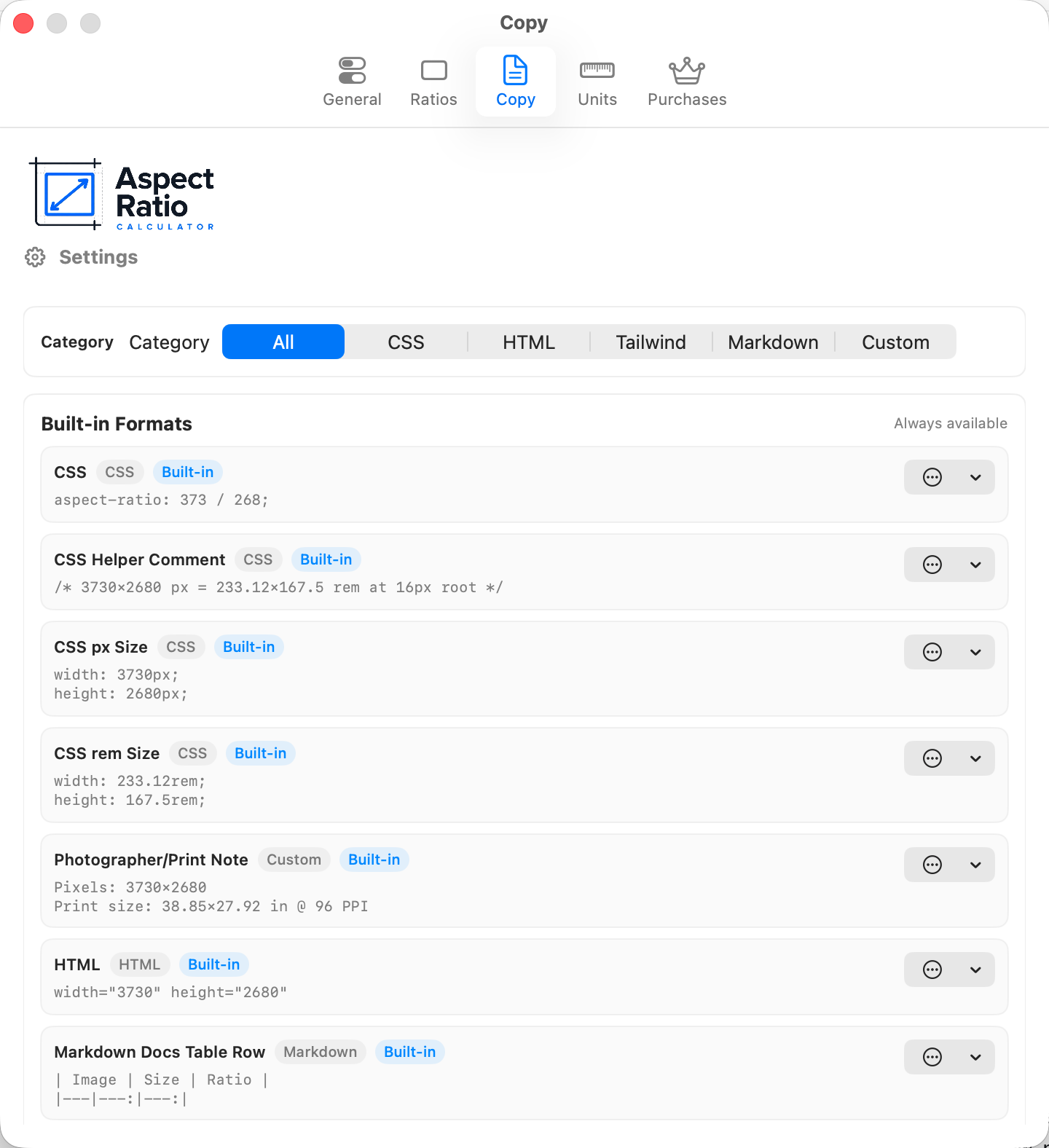
Developer Copy

Copy the size in the format you actually need.

Copy the size in the format you actually need — no calculator tabs, no retyping, no almost-right values.

aspect-ratio: 16 / 9;
<img src="hero.jpg" width="1920" height="1080" alt="">
aspect-[16/9]
![hero](hero.jpg)
Copy settings showing built-in CSS, HTML, Tailwind, Markdown, and custom formats.
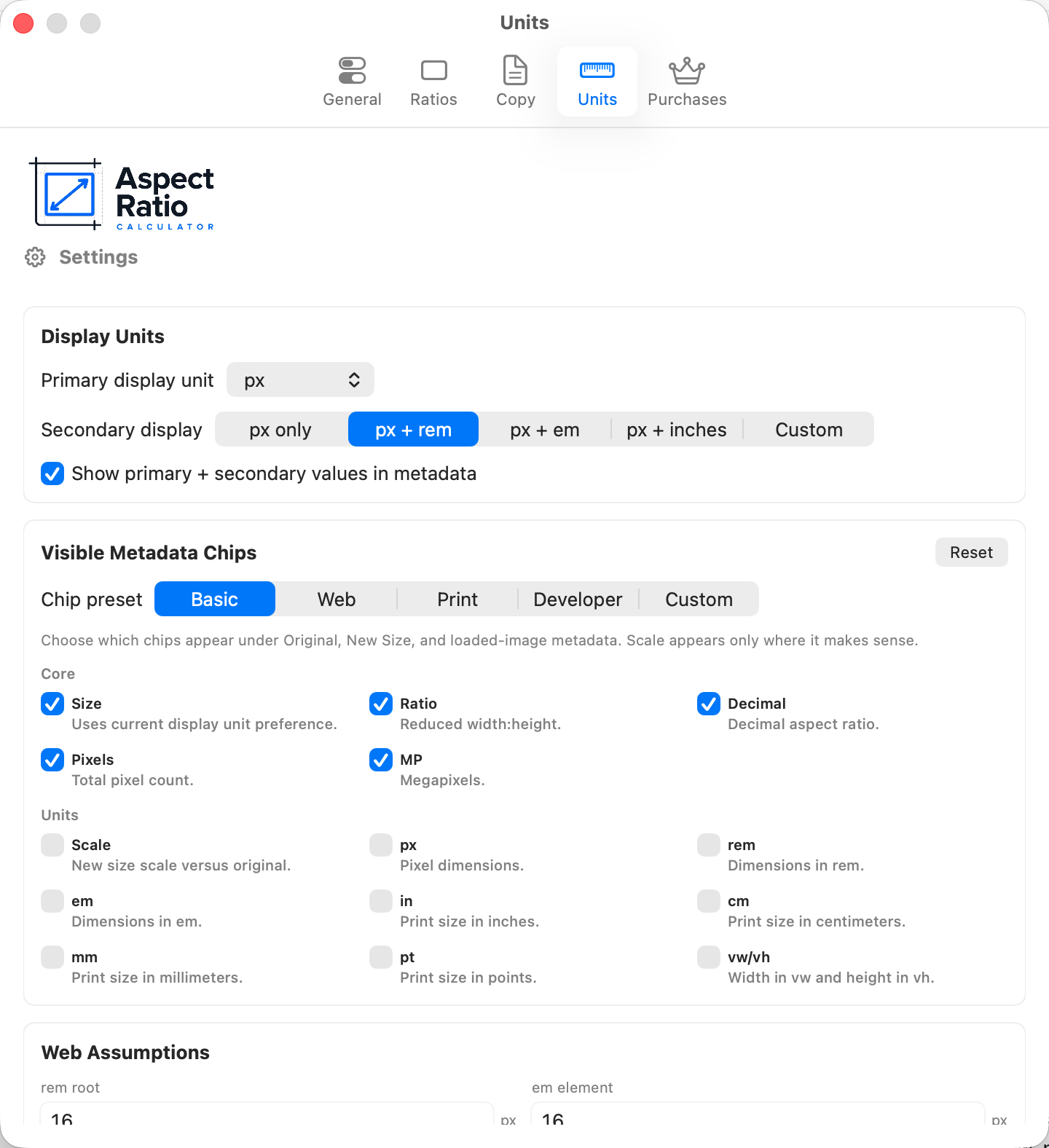
Units settings showing visible metadata chips and secondary unit choices.

Made for the moments when the exact size matters.

For the everyday image jobs that still need to be right.

Websites and landing pages

Prepare hero images, Open Graph graphics, cards, thumbnails, and responsive images.

App and product screenshots

Resize screenshots for product pages, documentation, support articles, and app listings.

Social posts and ads

Place images into fixed frames while preserving the part of the photo that matters.

Real estate and business listings

Resize listing photos, client graphics, blog images, and presentation images without stretching them.

Developer documentation

Copy image sizes, HTML attributes, Markdown snippets, and CSS helpers without retyping them.

Print-aware prep

Check unit-aware details when the image needs to make sense beyond pixels.

Free and Pro

Start free. Upgrade when you want saved ratios, custom templates, and more control.

Free

Core calculator, image inspection, built-in copy formats, Copy Output, Copy Output Size, and preview of Pro controls.

Family Pro Lifetime

The same Pro features with Mac App Store Family Sharing.

Launch price: $14.99. Regular price: $19.99.

Support Development

Coffee, Latte, and Double Shot are optional support purchases. They do not unlock features.

Support purchases are a thank-you, not a feature gate.

Already bought? Existing paid-app customers get Pro automatically when the App Store can verify the old paid purchase. Family Add-On lets eligible Individual Pro and legacy paid users add Family Sharing for $4.99.

Native Mac utility

A focused Mac utility, not a bloated editor.

Aspect Ratio Calculator is built to feel like a Mac app: drag and drop, a focused window, optional menu bar mode, and controls that make sense without a tutorial.

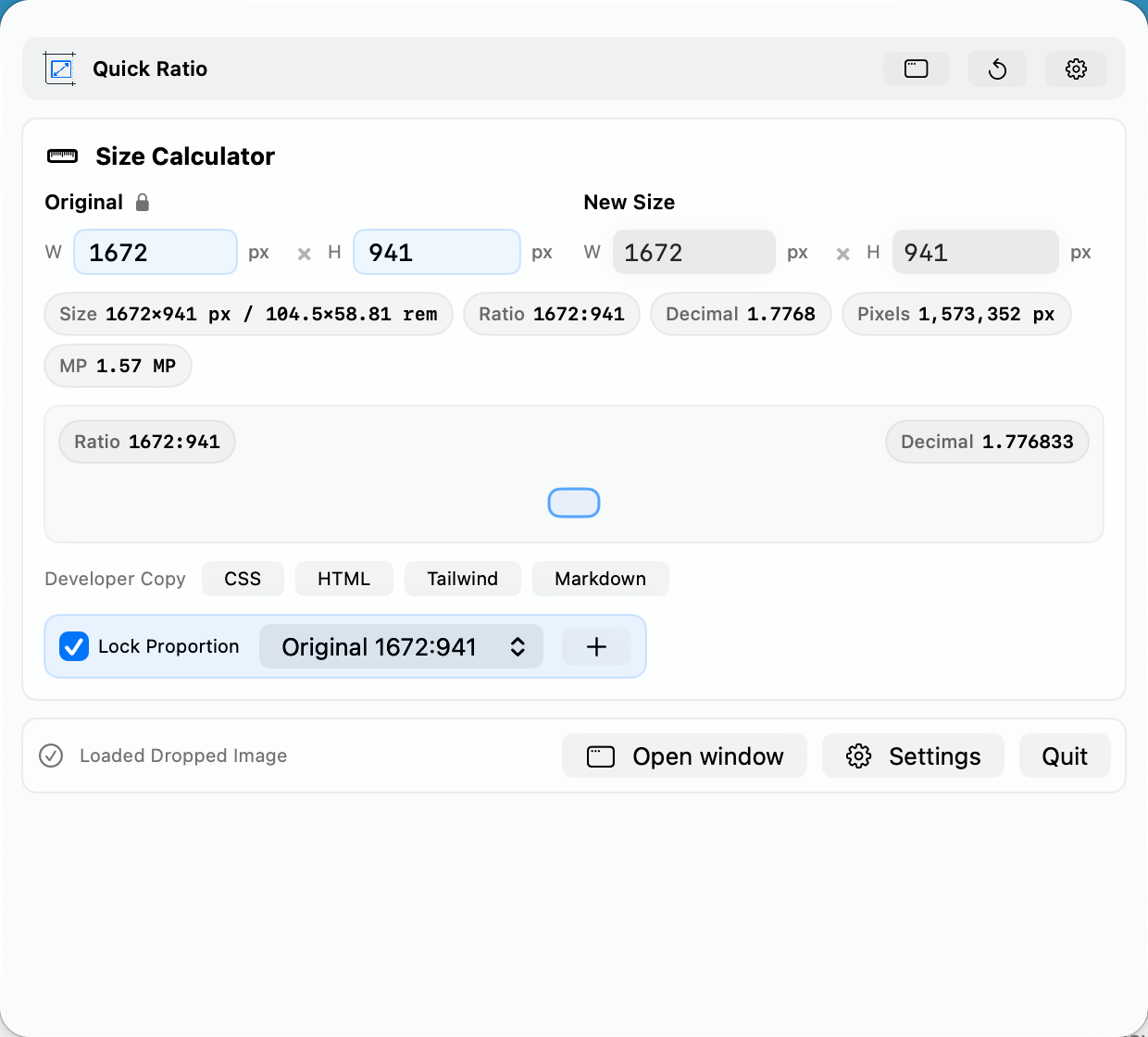
For quick jobs, Quick Ratio lives in the menu bar so you can check dimensions, lock a ratio, copy CSS, HTML, Tailwind, or Markdown, and get back to what you were doing.

  • Works with macOS Sequoia and Tahoe
  • Uses Liquid Glass styling on macOS 26 when available
  • Falls back to native controls on macOS 15 through macOS 25
  • Works as a regular window or menu bar utility

FAQ

A few things worth knowing before you download.

Here's what the app does, what Pro adds, and what it intentionally does not try to be.

Is Aspect Ratio Calculator a full image editor?

No. It is a focused tool for sizing images, preserving proportions, previewing the result, copying useful values, and exporting the final image. It is meant to sit alongside apps like Photoshop, Figma, Canva, Pixelmator, and Preview - not replace them.

Can I use it for free?

Yes. The free version includes the core ratio calculator, image inspection, basic pixel details, built-in copy formats, Copy Output, and Copy Output Size.

What does Pro unlock?

Pro adds saved custom ratios, custom copy templates, advanced unit conversions, configurable metadata chips, iCloud settings sync, and more control over resize, canvas, and export tools.

Does it support Family Sharing?

Family Sharing is available with Family Pro Lifetime and the Family Add-On. Individual Pro does not include Family Sharing.

I bought the old paid app. Do I need to buy Pro again?

No. If you bought the old paid version, Pro unlocks automatically when the App Store can verify your purchase.

Which export formats are supported?

PNG, JPG/JPEG, TIFF, and HEIC. HEIF is available when the macOS encoder supports it.

Can I share the resized output directly?

Yes. The bottom-bar Share action renders the current output and opens the native macOS share sheet, so you can send the result through the sharing options available on your Mac.

Does it work on many images at once or generate edits for you?

No. It is intentionally focused on one image at a time: dimensions, ratios, preview, copy formats, and export.

Where do I get support?

Use the contact form on this site and include the image size, export format, purchase question, or sizing problem you need help with. Please do not send sensitive files through the form. You can also review the Privacy Policy and Terms of Service before sending personal details.

Ready to stop guessing image sizes?

Calculate the ratio, preview the canvas or crop, copy the values, and export the image at the size you meant to use.

  • Images stay on your Mac
  • Free to download
  • Optional Lifetime Pro
  • Native Mac app

Support and feedback

Tell us what you're trying to size.

Include the original dimensions, the size you needed, and what happened. Please do not send sensitive files.

Review the Privacy Policy before sending personal details.

Sizing intake

Help us understand the image job.

Pick the closest options below. The hint changes so you know what details are useful.

I'm working on:

Pick the closest image type so the reply can start in the right place.

I need help with:

Choose what this is about, then include the dimensions or export format if you have them.